

Walk through a school on any given morning and you will see digital screens being used almost everywhere—yet rarely at a traditional, static office desk. A site officer logs a statutory compliance check on a phone inside a cramped cupboard; a teacher adjusts lesson slides on a laptop tethered to an interactive whiteboard or crouches beside low pupil tables with a tablet; an office administrator balances dual screens alongside physical pupil files and paperwork.
The Health and Safety (Display Screen Equipment) Regulations 1992 (as amended in 2002) were written for a very different era—one built around bulky cathode-ray tube (CRT) monitors and fixed desktop workstations. Decades on, school technology and working patterns have moved far beyond that model, creating a practical gap between legacy checklists and real-world school life.
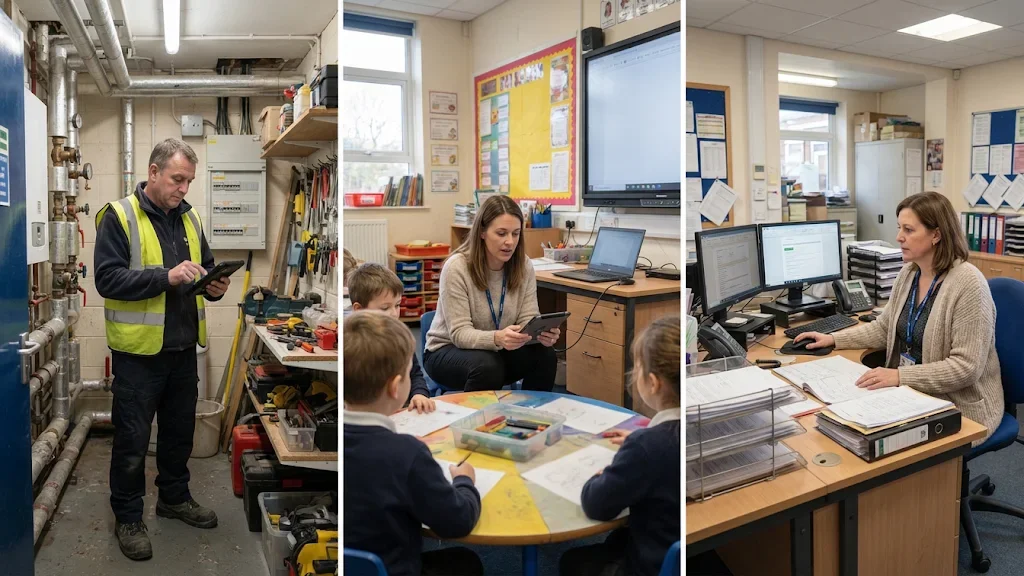
Use of DSE equipment in an educational setting
1. Screens Have Changed—and So Have Visual & Posture Risks
Older checklists still ask whether a screen is free from "flicker"—a classic throwback to older CRT displays. Today's LED/OLED monitors, laptops, and tablets rarely flicker in the old sense, but they bring different challenges:
Excessive brightness and glare against bright classroom windows, overhead lighting, or outdoor sunlight.
Mixed-screen setups, where pairing a laptop screen with a larger external monitor can cause awkward head tilts or mismatched text scaling if not set up thoughtfully.
Neck rotation ("twisting") when dual or triple screens are spread too wide, or when a laptop is tethered by a short cable to an interactive whiteboard.
2. Desk Space Is Under Pressure
Even when staff do sit at desks, space is often tight. Running multiple screens or a docked laptop while trying to lay out marking, registers, invoices, or pupil records quickly crowds the work surface. When there is nowhere to put paperwork or rest wrists cleanly, staff naturally reach forward, twist their necks, or perch keyboards and mice at awkward angles.
3. The 5-Point Chair Reality
A good DSE chair is only helpful if it is actually adjusted to the person using it. In practice, many staff sit in chairs that are too high, too low, or too deep—or use makeshift seating during busy moments. Checking the five core adjustments—seat height, seat depth (pan slide), backrest height/lumbar support, backrest tilt/tension, and armrest height/clearance—helps turn a piece of office furniture into genuine ergonomic support.
4. Premises & Facilities Staff Work Across Shifts and Tight Spaces
Caretakers, site managers, and premises officers are a prime example of modern mobile and agile screen use in schools. Their day often involves split shifts, walking grounds and plant rooms, inputting checks on phones or tablets, and uploading certificates or managing emails on a laptop from a small premises office, cupboard, or workbench. Because their screen time is broken up across devices and spaces, it is easy to overlook both postural strain and their right to employer-funded DSE eye tests when requested.
5. Teachers Move Between Classrooms, Pupil Furniture, PPA & Staff Rooms
Teaching is dynamic and multi-location. Across a single week, staff may work at a cluttered classroom desk, link a laptop to an interactive board, kneel or sit on miniature pupil chairs while checking work on tablets, and later use PPA time or lunchtime/after-school slots in a staff room on soft seating or high stools. A single office checklist simply does not reflect how those varied spaces affect posture, eyes, and breaks.
A More Practical Approach for Schools: Role-Tailored DSE Assessments
Rather than forcing every member of staff to answer "N/A" to half a generic office sheet, breaking DSE assessments down by how people actually work makes the process far more meaningful:
Office, Admin & Leadership: Focused on multi-screen layouts, laptop docking, desk space for paperwork, and the 5-point chair setup.
Site, Facilities & Estates: Focused on split-shift screen time, premises cupboards/workbenches, mobile/tablet compliance checks, and eye-care entitlements.
Teaching, Classroom & Agile Staff: Focused on classroom desks, interactive whiteboard tethers, low pupil furniture, tablets, and PPA/staff-room or home planning.
Pairing straightforward assessment forms with a quick-reference setup guide empowers staff to make simple adjustments straight away—and helps school leaders and business managers spot equipment or layout issues before discomfort turns into time off.
Want to Modernise DSE in Your School or Trust?
Request the 3-Part School DSE Templates: Get in touch with HSinCare to request the editable Word templates for Office/Admin, Site/Facilities, and Teaching/Classroom staff—or ask for support reviewing flagged workstation issues.
Book Training or Consultancy: Explore our education health and safety training courses and consultancy support to embed practical, role-relevant risk management across your school or Multi-Academy Trust.
Take Part in the National DSE & Mobile Working Survey: Share how your school or organisation manages hybrid, mobile, and standing screen work in our quick benchmark survey to help build evidence for modernising DSE guidance. National DSE & Mobile Working Benchmark Survey – Fill in form
Written by Adele Partridge CMIOSH, MIFSM, AIFireE — Chartered Health & Safety Consultant at HSinCare Ltd.